Install TallShort Desktop on your Mac
About five minutes, with a picture of the screens you will meet. Two ways to install: a disk image or an installer.
Step 1: Download TallShort Desktop
On the download page choose one of two files. They contain the same app (about 3 MB each). The disk image (.dmg) is the quickest: open it and drag the app into Applications. The installer (.pkg) walks you through the steps, and later offers Update, Reinstall or Uninstall.
Download TallShort DesktopStep 2: Put it in Applications
Disk image: double-click the .dmg, then drag TallShortDesktop onto the Applications folder in the window. Installer: double-click the .pkg and click Continue and Install (it asks for your Mac password). Keep the app in Applications: automatic updates need a place they are allowed to change.
TallShortDesktop
Applications
Illustration: drag TallShortDesktop onto Applications. Step 3: Open it. macOS will warn you
The first time you open the file, macOS says Apple could not verify it is free of malware. This is expected: Monosoft is not an Apple-registered developer yet, so the file has not been submitted to Apple for notarization. Careful: the blue, highlighted button is Move to Trash, so do not just press Return. Click Done (macOS 15 and 26) or Cancel (macOS 14).
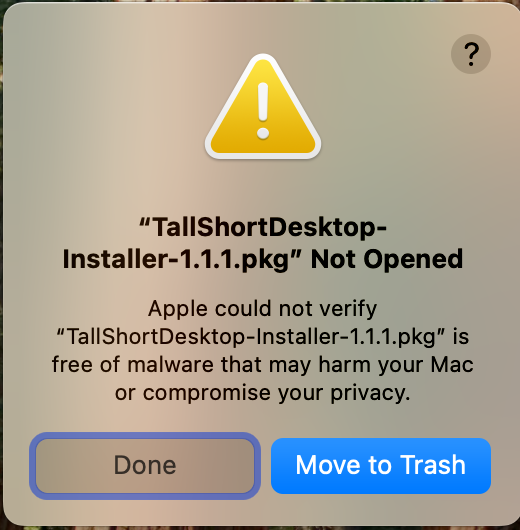
What macOS 15 (Sequoia) shows when you open the installer. The disk image shows the same message. Prefer the Terminal?
This removes the first-open warning from the app once it is in Applications. Run it once, then open TallShort Desktop as usual:
xattr -dr com.apple.quarantine /Applications/TallShortDesktop.appStep 4: Allow it in System Settings
This is a one-time approval for each file.
- Open System Settings, then Privacy & Security.
- Scroll down to the Security section.
- Next to the line saying the file was blocked, click Open Anyway.
- Enter your Mac password or use Touch ID, then click Open.
- If you used the disk image, macOS may ask again the first time you open the app from Applications. Repeat the same steps.
On macOS 14 you can also Control-click the file and choose Open.
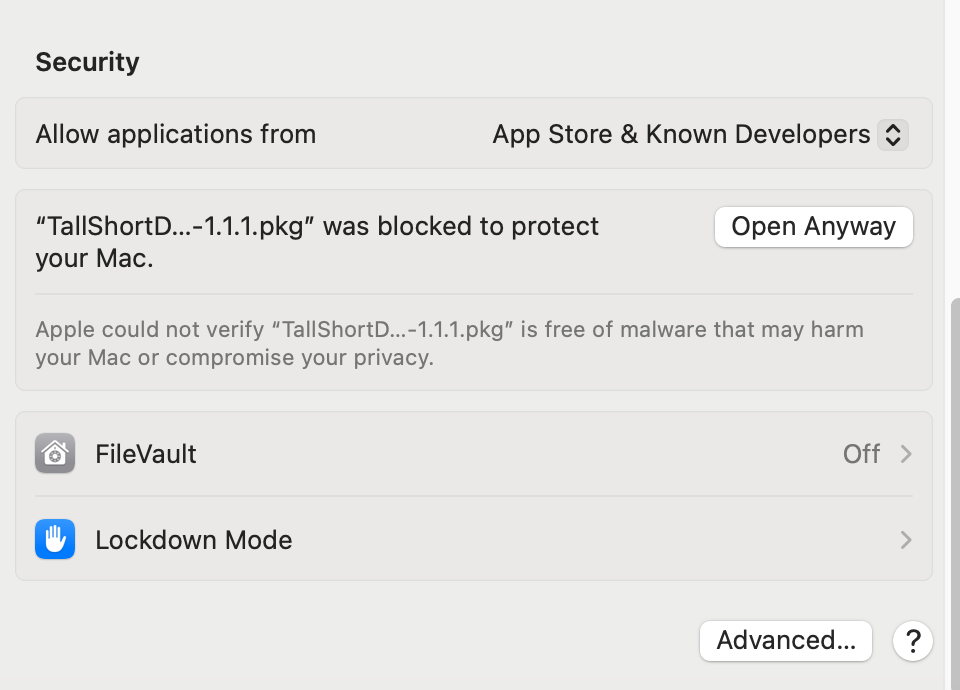
Privacy & Security on macOS 15. Open Anyway shows for about an hour after you tried to open the file. Step 5: Start your free trial or enter a key
The license window opens by itself. Click Start 30-day free trial: no card and nothing to type. If you already bought a license, type the key (it looks like WL-XXXX-XXXX-XXXX-XXXX-XXXX) and click Activate. The key is for one Mac.
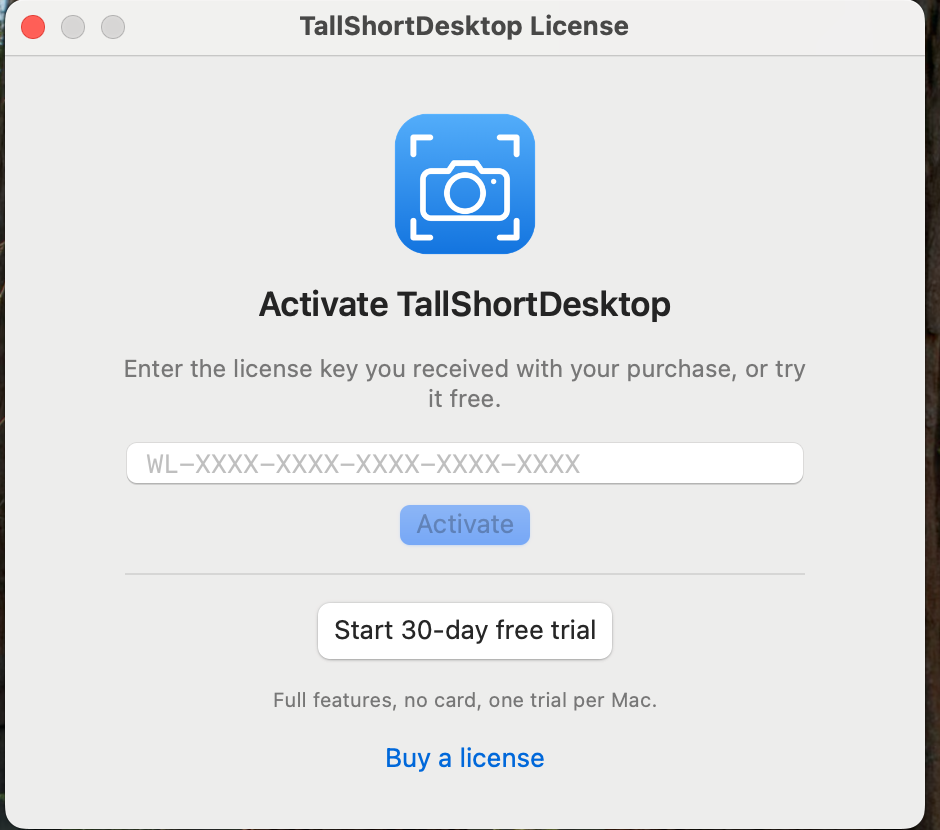
The license window of TallShort Desktop. Step 6: Allow screen recording
A setup window lists three permissions. Only Screen Recording is required: click Grant, then switch TallShortDesktop on in System Settings. After you allow it, quit TallShortDesktop from its menu bar icon and open it again once: macOS only tells an app about this permission when the app starts. Accessibility (for scrolling capture) and Microphone (for recording your voice) are optional and can wait until you use those features.
Step 7: Take your first screenshot
TallShort Desktop lives in the menu bar: look for the camera icon at the top right of the screen. Press ⇧⌘1 to capture the whole screen, ⇧⌘2 for an area or a window, ⇧⌘3 for a scrolling page, ⇧⌘4 to record the screen. The editor opens after every screenshot.
Step 8: Stay up to date
TallShort Desktop looks for updates by itself and asks before installing. You can also click the camera icon and choose Check for Updates at any time. The menu also has License… to see your license or trial and how many days are left.

Something not working?
I clicked Move to Trash by mistake
Nothing is lost. Download the file again from the download page and repeat the steps. From now on click Done.
I do not see Open Anyway
Try to open the file once more, then go straight to Privacy & Security: the button shows for about an hour after a blocked attempt. If the Security section says the setting is configured by a profile, your Mac is managed by your company. Ask your IT team to allow TallShort Desktop.
macOS says the app is damaged and cannot be opened
Run the Terminal command above, then open TallShort Desktop again.
I cannot find the app after installing
TallShort Desktop has no Dock icon. Look for the camera icon in the menu bar at the top right of the screen. If the menu bar is crowded, some icons are hidden: close another app's icon, or open TallShortDesktop again from the Applications folder.
Screenshots are blank or capture does not start
Screen Recording is not allowed yet. Open System Settings, Privacy & Security, Screen & System Audio Recording and switch TallShortDesktop on. Then quit the app from its menu bar icon and open it again.
It says the key is for Waylink
Each license works for the app it was bought for. Check the email with your key: it names the app. Ask us if you bought the wrong one.
Start free trial says it could not reach the server
Check your internet connection, and any firewall or proxy that might block update.monosoft.app, then try again.
An update does not install
Make sure TallShortDesktop is in Applications, not in Downloads or inside the disk image, and that you can change that folder.
Uninstall
First click the camera icon and choose License…, then Deactivate this Mac, so the license is free to use on another Mac. Then quit TallShort Desktop and either drag it from Applications to the Trash, or open the installer .pkg and choose Uninstall.
- Your screenshots and recordings stay in the folder you chose. They are not removed.
- Settings are in the file ~/Library/Preferences/com.zank.screencapturemac.plist. Delete it to reset them.
- Under System Settings, General, Login Items you can check that TallShortDesktop no longer starts at login.