Install Waylink on Windows
About five minutes. Download the installer, run it, and Waylink is ready to start.
Step 1: Download the installer
On the download page choose Download for Windows. The file is called Waylink-Setup-x.y.z.exe and is about 55 MB.
Go to the download pageStep 2: Run the installer
Double-click the file you downloaded. It installs Waylink for your user only, so it does not ask for an administrator password, and Waylink can then update itself.
- Click Next.
- Keep the folder it suggests, or choose your own, and click Next.
- Tick Create a desktop shortcut if you want one, then click Install.
- Leave Start Waylink ticked and click Finish.
Step 3: If Windows warns you
Windows SmartScreen may show a blue window called Windows protected your PC, with an unknown publisher. This is expected for now: Waylink is not signed with a code-signing certificate yet, so Windows does not know the publisher. It is the same file whose SHA-256 checksum is on the download page, so you can check it.
- Click More info in the SmartScreen window.
- Click Run anyway.
Step 4: Start your free trial or enter a key
The license screen opens by itself. Click Start 30-day free trial: no card and nothing to type. If you already bought a license, type the key (it looks like WL-XXXX-XXXX-XXXX-XXXX-XXXX) and click Activate. One license works on up to two computers, a Mac or a Windows PC, with one open at a time. No internet on this PC? Open Activate without internet and follow the three steps.
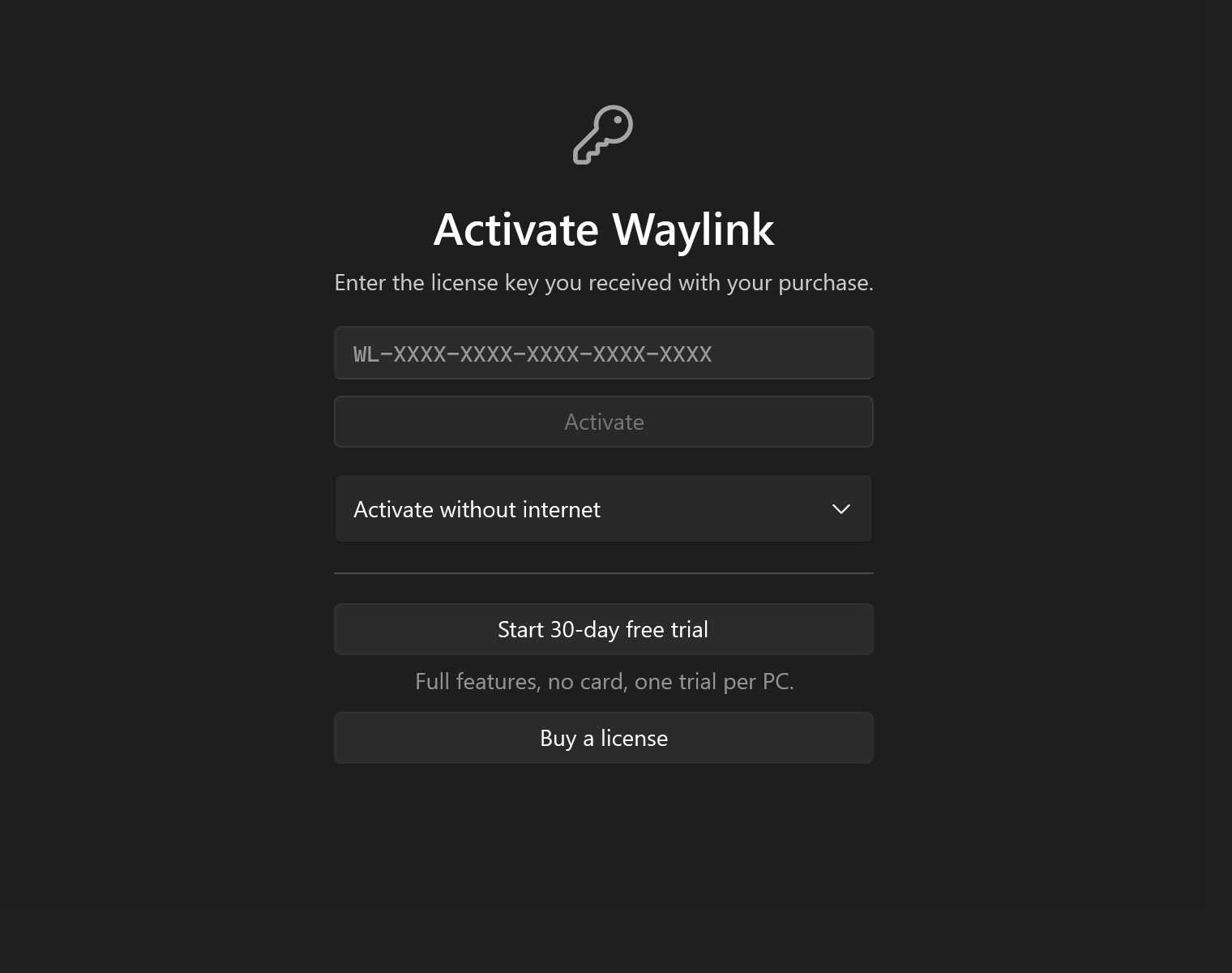
The license screen of Waylink for Windows. Step 5: Add your first server
Click New host and fill in the address, port and user. Choose Linux / macOS for SSH, or Windows Server for Remote Desktop, and how you sign in. Double-click a host to connect: SSH opens a terminal in a tab, a Windows server opens Remote Desktop. The first time you connect to an SSH server, ssh shows its fingerprint and asks you to confirm: check it and answer yes. Tick Remember to keep a password or key passphrase in Windows Credential Manager. Already have hosts in the Mac app, or .rdp files? Use Import.
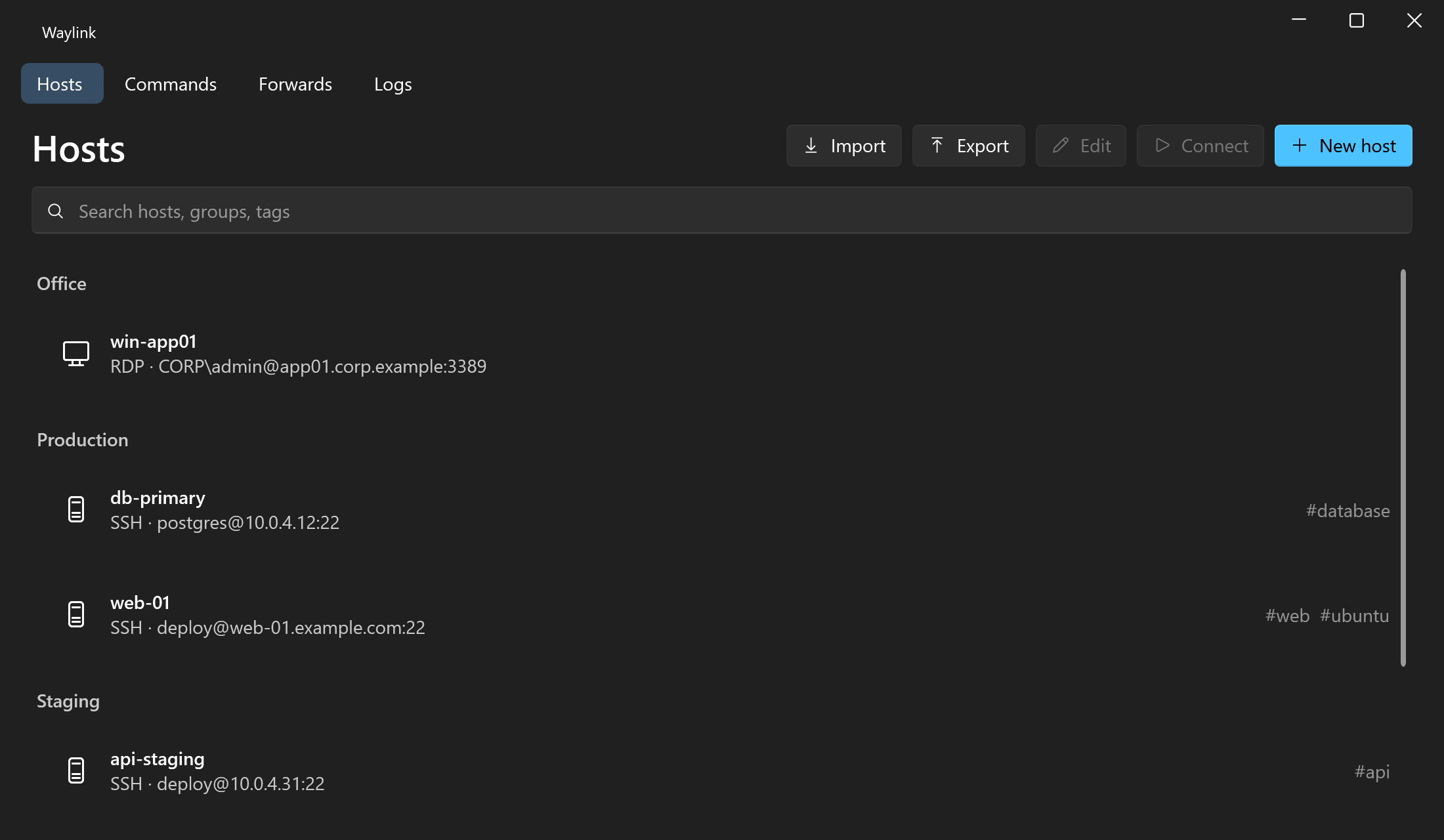
The Hosts page, with made-up servers. Step 6: Stay up to date
Waylink checks for updates by itself. When a new version is ready, an Update available button appears at the top of the window. Click it, then Install and restart: Waylink downloads the update, checks that it is genuine, replaces its files and opens again. To check yourself, open License and click Check for updates.
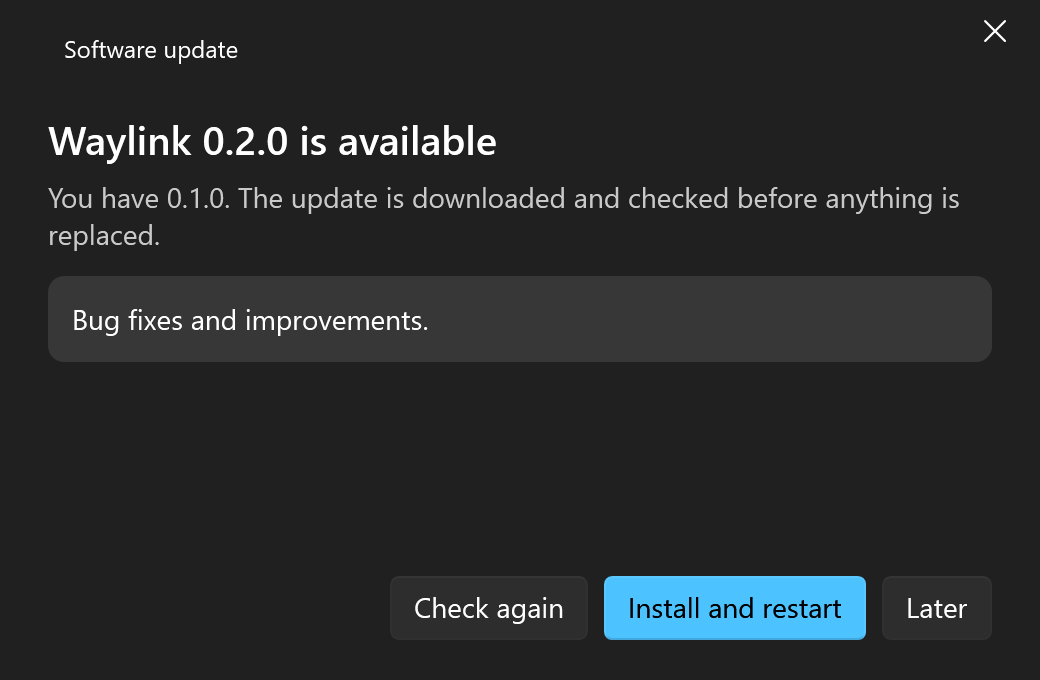
The update window. The version shown is only an example.
Something not working?
Windows says Windows protected your PC
That is SmartScreen, and it is expected until Waylink is signed with a code-signing certificate. Click More info, then Run anyway.
It says the OpenSSH client was not found
Waylink uses the OpenSSH Client of Windows. Open Settings, System, Optional features, add OpenSSH Client, then connect again.
The terminal does not start
Waylink draws its terminal with Microsoft Edge WebView2, which comes with Windows 11 and current Windows 10. If the terminal shows an error, install the WebView2 Runtime from Microsoft and open Waylink again.
It says the key is for a different app
Each license works for the app it was bought for. Check the email with your key: it names the app. Ask us if you bought the wrong one.
It says the license is already active on two PCs
Open License on a computer you no longer use and choose Deactivate this PC, or contact us to reset your devices.
It says Waylink is in use on another PC
Your license allows one open at a time. Close Waylink on the other computer, or click Close it and use here.
Start free trial says it could not reach the server
Check your internet connection, and any firewall or proxy that might block update.monosoft.app, then try again.
An update says the folder cannot be written to
Waylink is in a folder it may not change, such as Program Files. Run the newest installer: it installs in your own folder.
Can I use a zip file instead of the installer?
Yes. The download page also offers a portable zip: unzip it into a folder of your own (not Program Files) and run Waylink.exe. The installer is easier: it adds a Start menu entry and an uninstaller.
Uninstall
First open Waylink, choose License and Deactivate this PC, so the license is free to use on another computer. Then open Settings, Apps, Installed apps, find Waylink and choose Uninstall.
- Your hosts and settings are in the folder %APPDATA%\Waylink. They are kept when you uninstall. Delete the folder to remove them.
- Saved passwords are in Windows Credential Manager, under Windows Credentials, in entries whose names start with Waylink. Remove them there.
- A cache for the terminal and for downloaded updates is in %LOCALAPPDATA%\Waylink. You can delete it too.